Welcome #
This guide is meant for general guidance and suggestions to help people run events.
As you have access to this doc, you should have the ‘event-host’ role in the Discord, this grants access to a few channels focused on event hosting, such as sharing ideas, coordinating events etc
If you don’t already have the role but are interested in hosting events, feel free to speak to any of us on the Oasis-Team directly in-game or on discord.
We would like the role to show those active in posting, discussing or helping with events. The role will be removed if unused for an extended period of time, please feel free to give a quick nudge in a ticket to request the role again if
We will reach out if we see no activity for a few weeks, might be you had an idea and haven’t had a chance to put something together!
Abuse of the bot will result in the role being removed and mod action being taken ( using the bot to spam people, hosting events that do not fit within the rules and community guidelines etc)
Event Calendars #
We have set up 2 calendars to help with scheduling events updated ~hourly.
These offer a quick overview of scheduled events; both live and draft stage to give you a quick way to see what else is pencilled in and mitigate issues around potentially clashing event times.
There are no hard rules around hosting events that may overlap, just keep in mind that people can only be in one place at a time and having two similar events running may dilute attendance & make it tough for people to pick which event to stick with. There are channels under the EVENT_HOSTING section on the discord to help organise, schedule and work with others.
Live Events
Drafts / not yet published
Rules and expectations #
Events must conform to the Community rules and guidelines : Rules
Whilst hosting events in VRC - you will have various permissions granted that allow you to moderate the instance, warning those causing issues and if necessary removing them from the instance.
Any incidents should be reported in a ticket via the discord Raise Ticket
Let the team know what happened; giving details about who, what, when and where.
Regular events should have a co host #
Regular events will naturally form a part of people’s routine, having a single host risks the event being cancelled should they be unavailable. Having a co-host helps reduce the pressure of having to keep hosting and gives a safety net - no one wants burnout for something that their doing primarily for fun!
Having someone on standby ready to pick up the event in your absence gives everyone a little added peace of mind.
Please note that for now, we don’t have a specific tag or field to attach Co-hosts to an event. Please add them into the description “Co-host(s): @ name, @ name etc”
Feel free to post here to ask if anyone can help Co-Host:
https://discord.com/channels/1413245061382275198/1418583458514468925
VRChat - Hosting #
The Event-Host role includes the following VRChat permissions
| Link Instances and Events | Allows role to create and link instances to live events, events that start in under 6 hours, and events that ended up to 6 hours ago. |
|---|---|
| Moderate Group Instances | Allows role to moderate within a group instance |
| Manage Group instances | Allows role to rename or close a group instance. |
| Create Age Gated Instances | Allows role to create group instances that require users to have age verified and be 18 or above in order to join. |
| Create Group+ Instances | Allows role to create group instances that friends of people present can also join |
| Create Members-Only Group Instances | Allows role to create members-only instances. |
| Portal to Group+ Instances | Allows role to open locked portals to Group+ instances. Members, friends of people there, and friends of the portal dropper may enter unless group-banned. |
| Unlocked Portal to Group+ Instances | Allows role to open unlocked portals to Group+ instances. Everyone except group-banned people may enter. Requires “Portal to Group+ Instances”. |
Using In-Game Moderation Tools #
When running an event, you will have access to several tools to moderate and manage the instance. Access the these tools by; Opening up your small menu Select the pin icon at the bottom
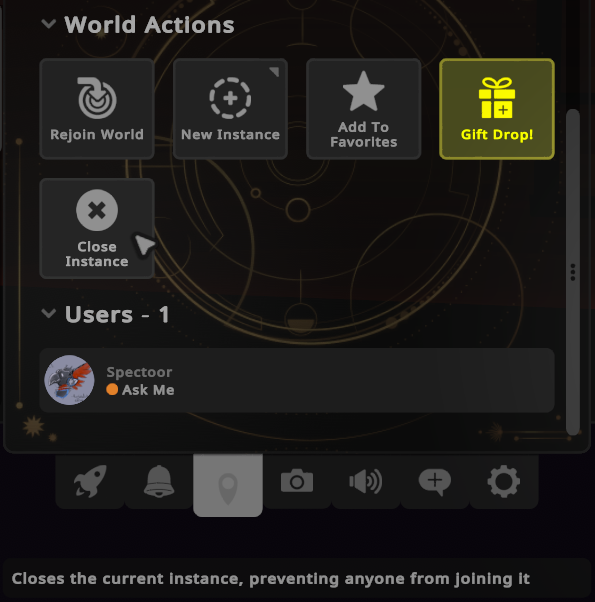
This opens the instance tab, providing info about the instance and listing those present.
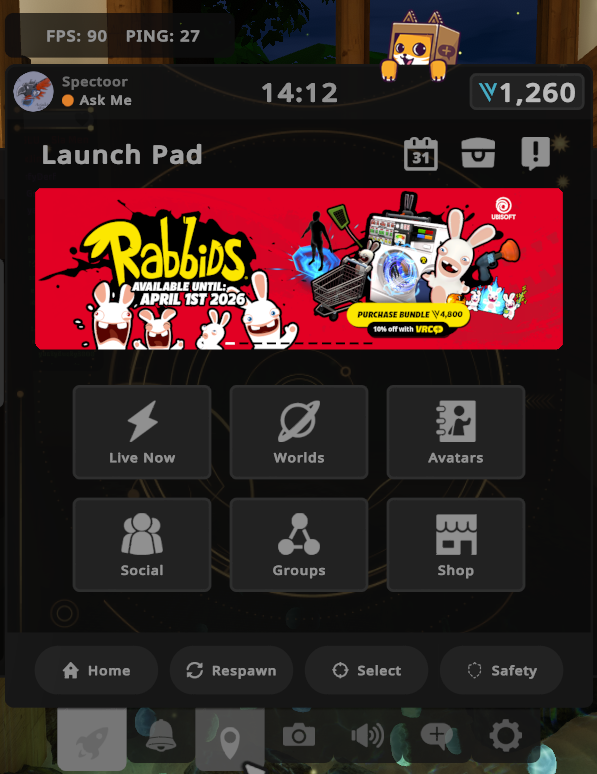
You then have several options available depending on your permissions.
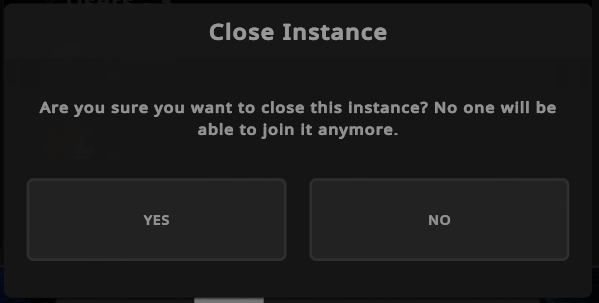
Close Instance
User Moderation #
Below the Close Instance button, you will be able to see a list of people in the instance.
Select the user and scroll to the bottom of the page to see moderation actions that you can take.
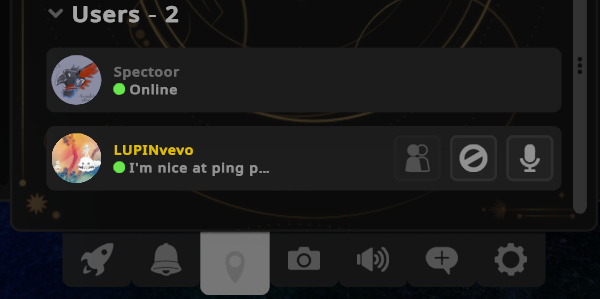
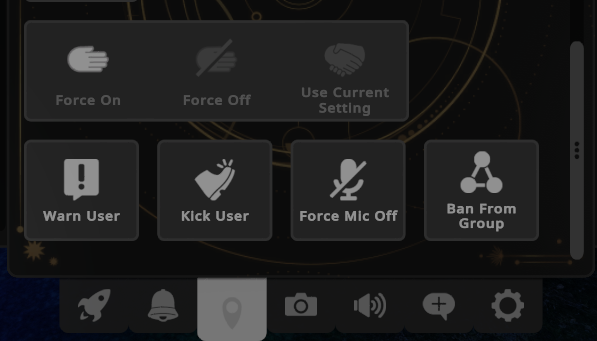
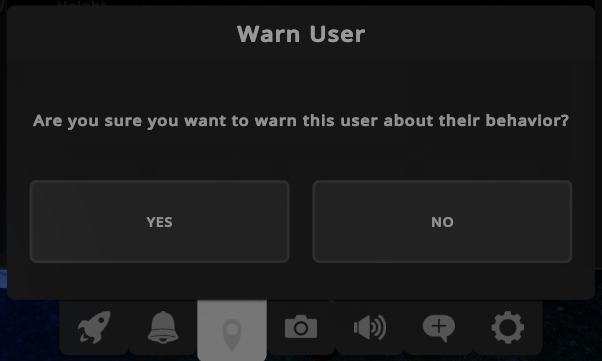
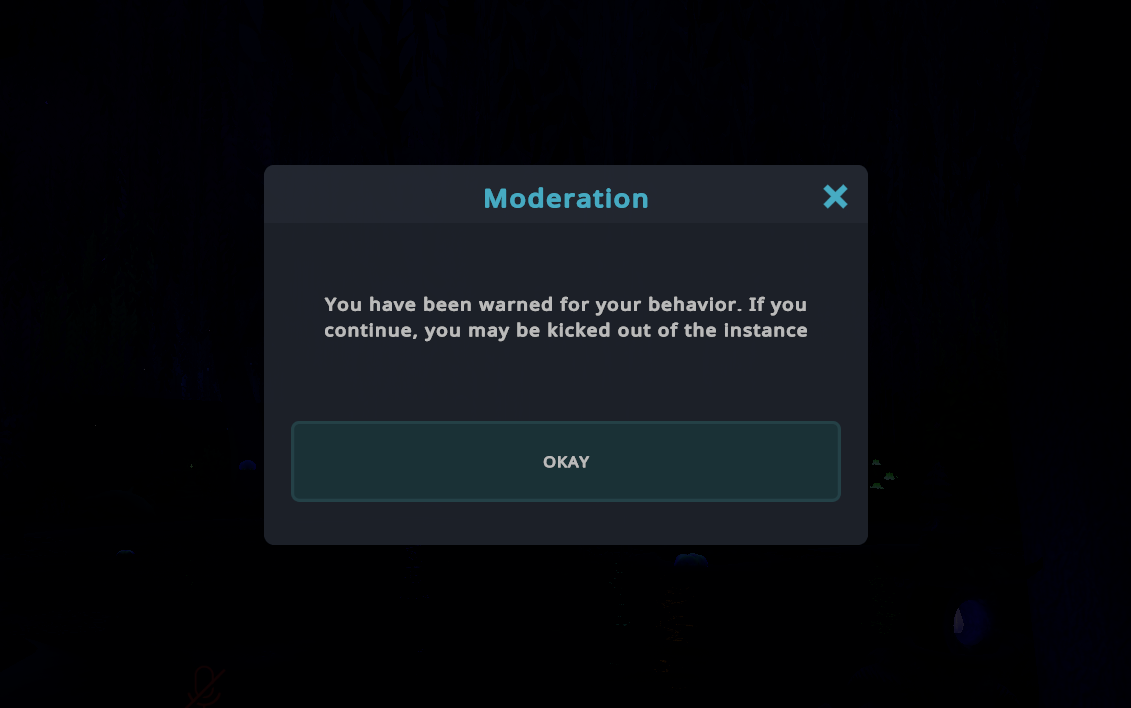
Warn User
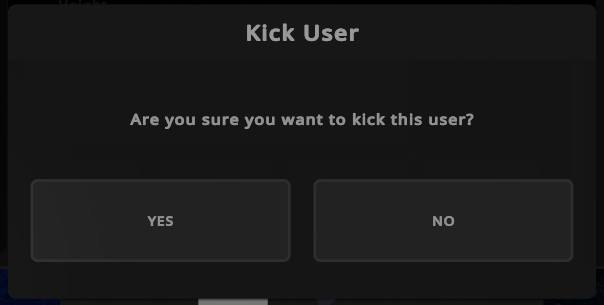
Kick User
This will remove them from this particular instance, they will not be able to rejoin.
This is not the same as voting to kick someone, you will immediately be able to kick a disruptive member.
WARNING: Once kicked. They CANNOT re-join.
This includes other event hosts, community guides, admins, moderators.
Abuse of this will result in mod action.
Force Mic Off
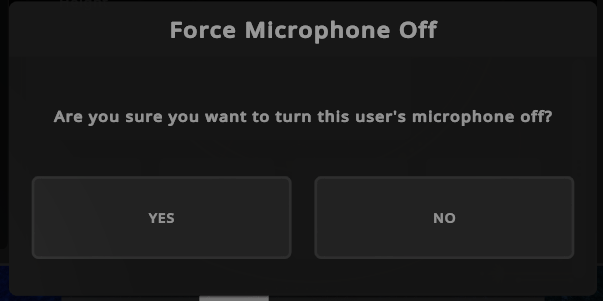
Ban From Group
Please make Oasis-Team members aware about the issue, by raising a mod ticket
If it is happening in an event where Oasis-Team members are present, you can ask them to ban the user outright - extreme cases.
These tools should hopefully give you everything you need to host your event and resolve issues as they crop up, having access to these tools is about giving you the flexibility to run YOUR event
Reach out to us during an event either in-instance or via a DM / mod ticket if you have an issue or don’t feel comfortable handling it directly. We are here to help.
Creating Instance in VRC #
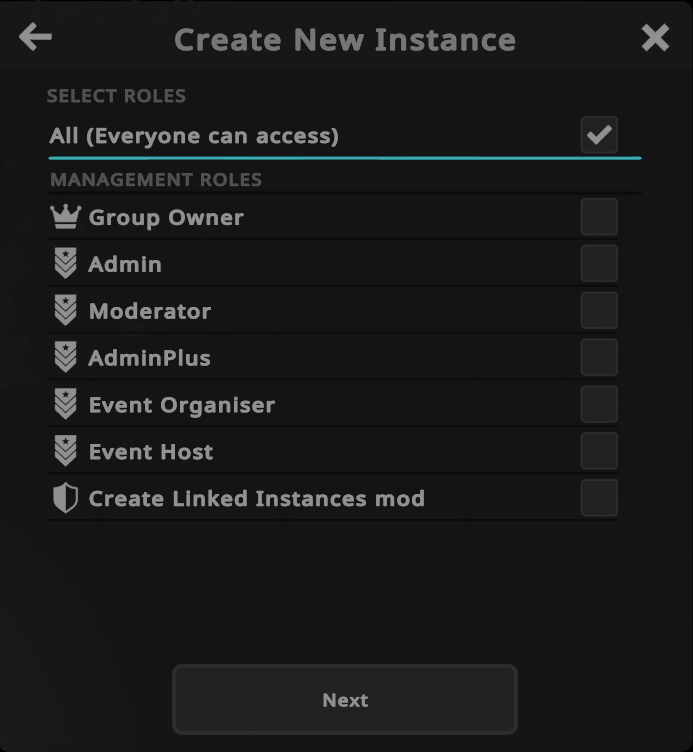
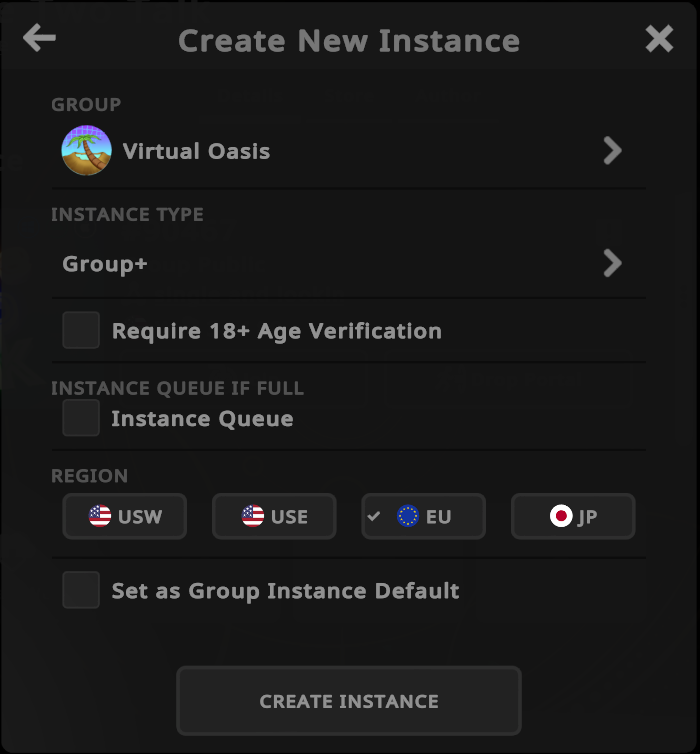
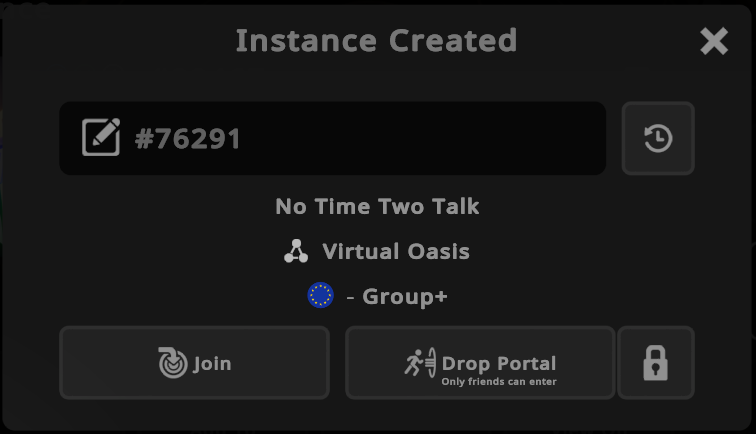
To set up a group instance, open your menu and select a world. Under actions select “New instance”.
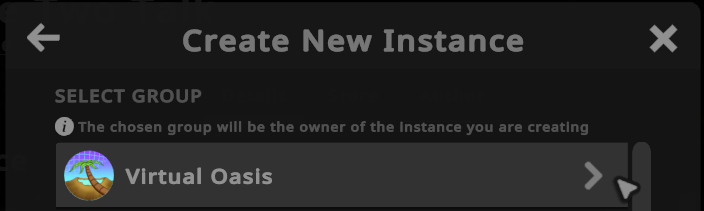
Select group at the bottom and then you should see the Oasis group on the next page.
Best Practice - When to Group or Group+
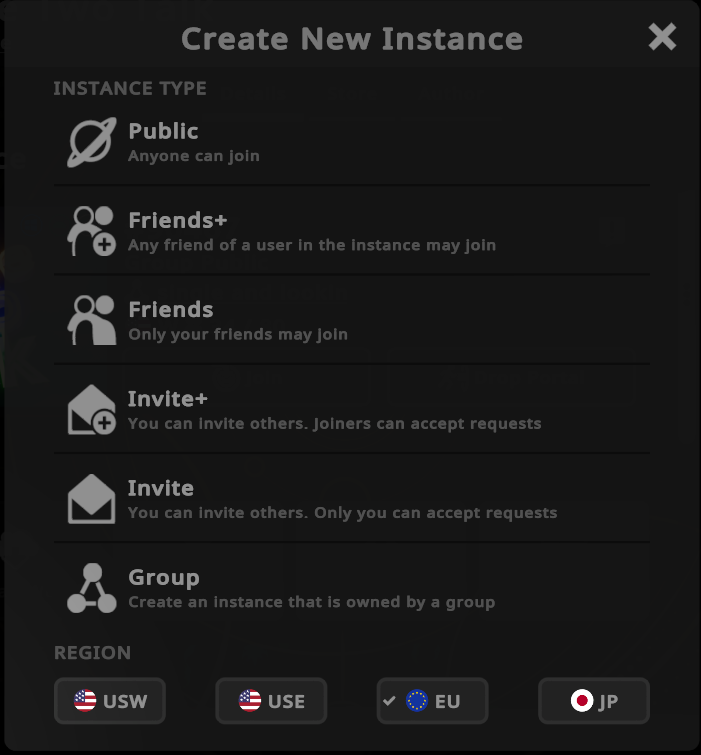
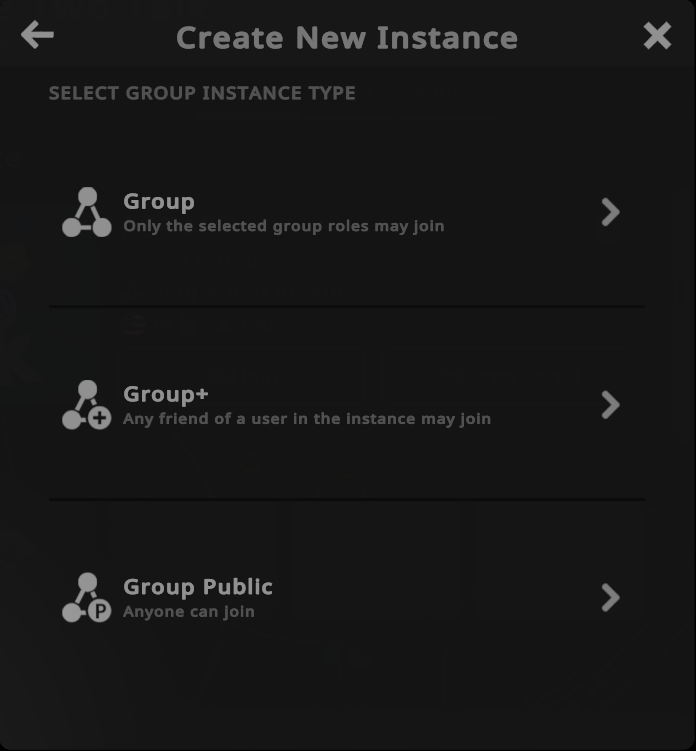
Group Instances can be restricted by Role b
Typically “ALL” makes the most sense as all members of the group are then able to join.
Group + is all members of group and friends of those members and friends of friends of… etc
Message Shader Asset Pack #
Have you ever been in an event and seen a big banner appear asking people to pay attention, please gather, time for a photo! this is all done through a shader asset that can be added to your VRC avatar with Unity.
To support those running events in Oasis, we’ve put together a prefab to make it as easy as possible to add these shaders to your avatar, we hope this helps :)
We have an asset prefab pack which can be downloaded
This downloads the file directly.

Apply this to your avatar in unity to gain access to some useful event running layers
The asset pack will add a menu item with a shader that allows you to display a message to all users in an instance - this is useful for showing a “please respawn, please listen” etc message to everyone when running events.
Knowledge of Unity will greatly help, please try the below steps and if you get stuck message the Oasis Team for help (Or you can @ me Spectoor)
You will need modular avatar package ( How to Add Modular Avatar to Unity )

Download the unity package, drag into you project and import
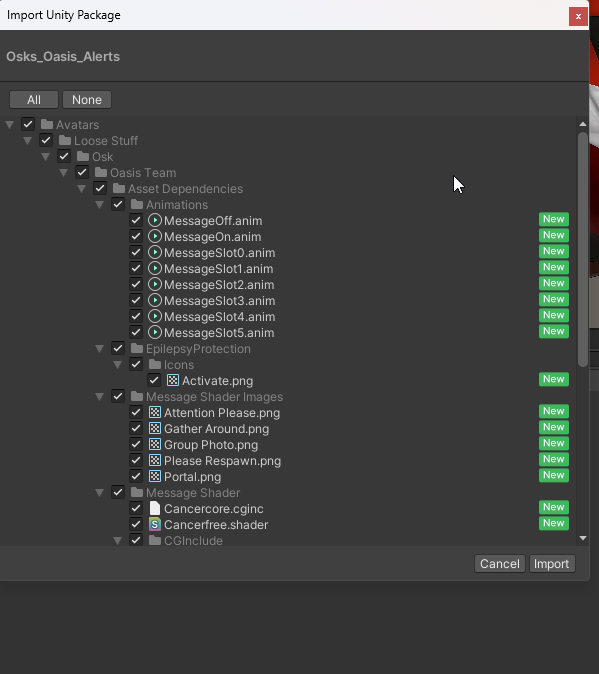
The prefab and content you will need are in Avatars / Loose Stuff / Osk / Oasis Team
Making use of the pack, in game you should have a menu option added to your base menu: “Oasis Menu”
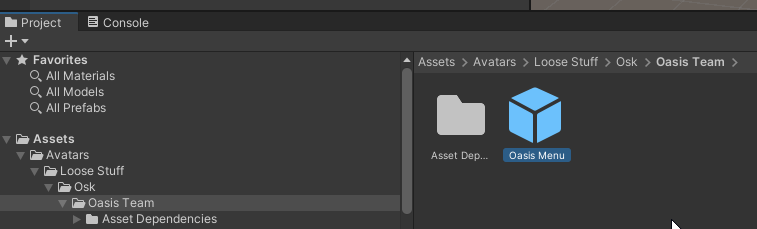
Drag the prefab onto your avatar root
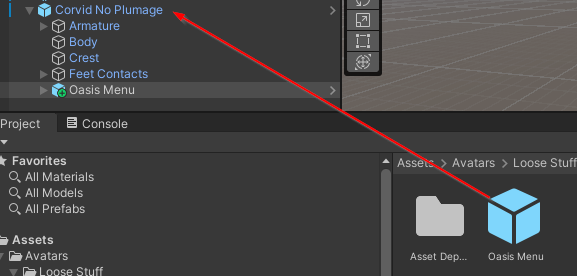
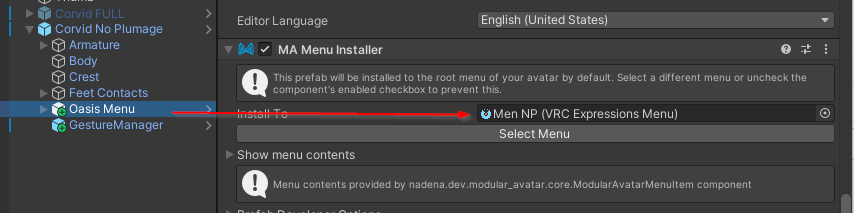
You can see here, the prefab once dragged onto the avatar, has auto referenced the root menu for your avatar.
You can use Gesture Manage Emulator to quickly check that this works, you should be able to confirm by going to the Expression menu, the new Oasis Menu option appears.
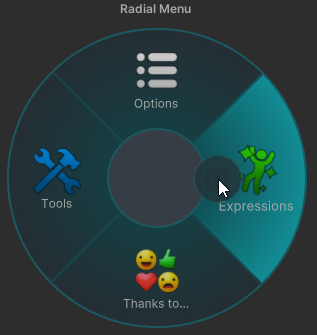
In this menu you can enable the Shader and set the message that should be displayed, you will need both a message and Enabled Shader toggled on for the message to display.
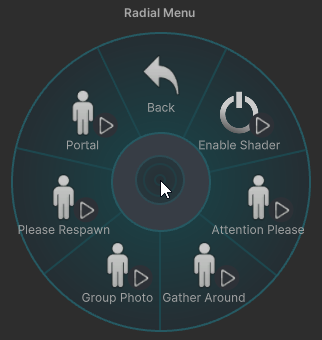

Please Note; Due to the way this works whilst it is active - some peoples avi’s shader layering may be interrupted, try to remember to un-toggle everything when you don’t need it showing. (It should un-toggle automatically with the animation config)
Discord / Other - Hosting #
When hosting events outside of VRC you can opt to use the in-game chat tools, however it’s usually easier to keep things organised by using a discord voice channel, everyone can jump in and then mute to use in-game voice. Using discord to stay connected in case you have to create new lobbies, move elsewhere etc and if new people join during an event the host(s) can un-mute to welcome them and help them join in.
Create your own Event Voice Channel #
Hop into the VC | CREATE channel, you will automatically be moved into a new Voice Channel that you’ll be the owner of.

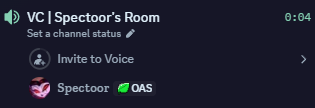
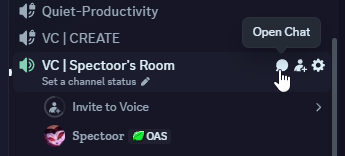
Hover your cursor over the channel name and click the small speech bubble to open up the VC text chat.
You’ll then have an initial message that shows you are the room owner and will be able to customize, kick or ban people.
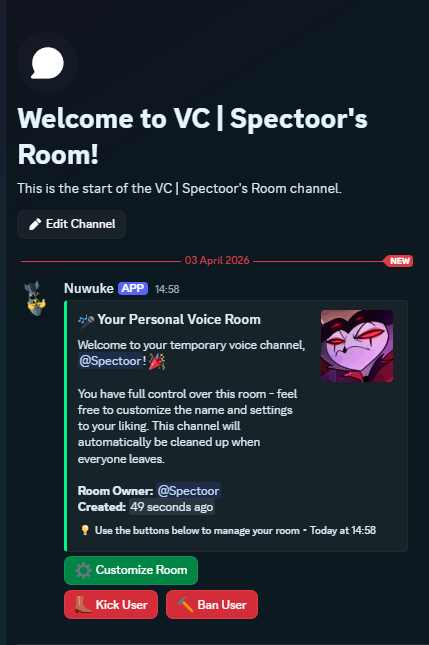
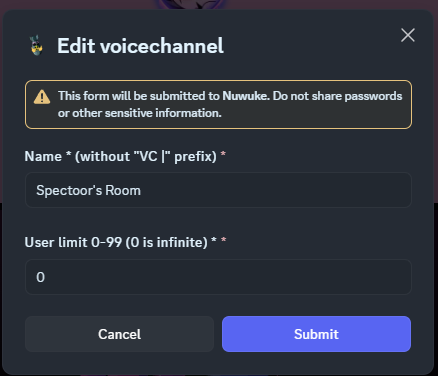
Here you can change the name of the channel as well as limit the number of people able to join this channel - this can be useful if you are hosting an event with a fixed number of attendees and don’t want non-participants to be able to join and interrupt mid-way through.
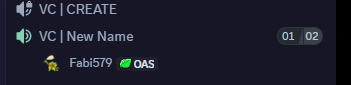
For those not in the channel itself - they will see the icons on the right, how many are in the lobby and the total that can join.
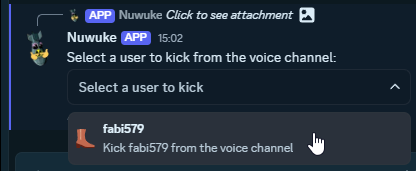
If you click Kick or Ban - A dropdown list will appear where you can select the user to apply the action to.
Kick moves the user out of the channel and ban prevents them from re-joining the channel.
Using the bot to create an event #
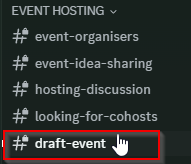
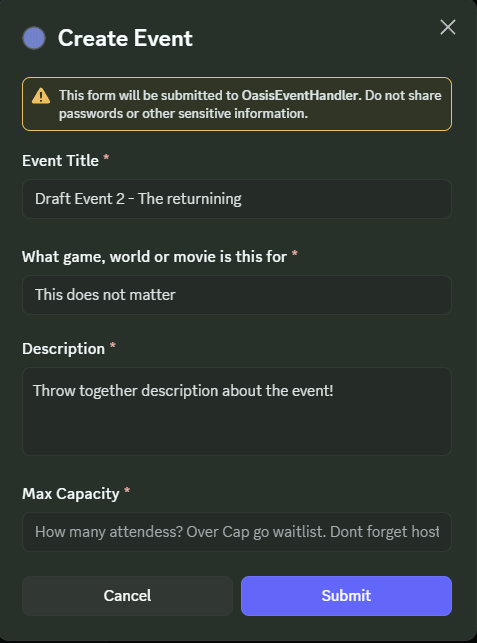
Event Title This is an alphanumeric string, can be 191 characters in length
What game, world or movie is this for Not currently used, had plans to integrate lookups dynamically i.e post steam game, get steamdb lookup, post movie get IMDB page.
Description Give info about your event
We recommend at least putting an intro for the event covering;
- Quick how to play if a game or activity
- Info about how to join
- List any requirements for joining i.e if you need to buy game, if it’s free or a browser game etc
For a movie or watch party
- How the vibe or atmosphere is hoping to be. Feel free to chat, let’s focus, after movie review etc
Max capacity Does not auto reduce by 1 for host or co hosts
So if an instance or game fits 8 people, put capacity at 7 or set 8 but then sign up to your own event
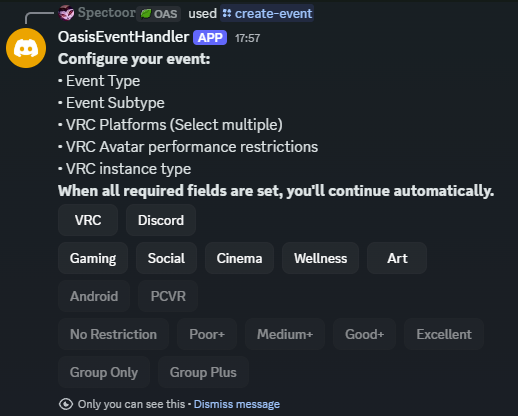
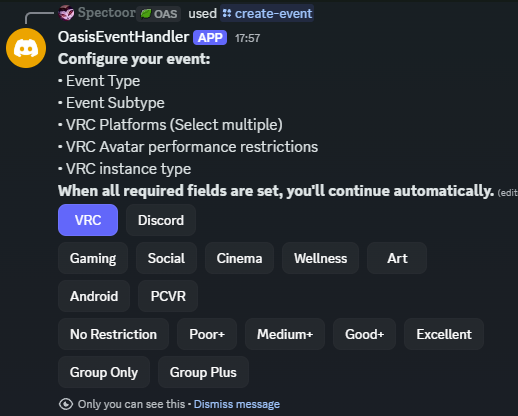
You can flip between these settings as you are setting the event up - once all relevant fields are filled the wizard will move to the next stge
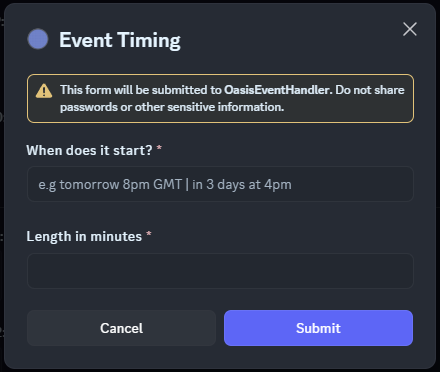
March 31st 8PM CET
This poster is only shown in Discord.


Editing Draft #
You’ll now have an event draft you can use to double check all the details are correct or edit the event
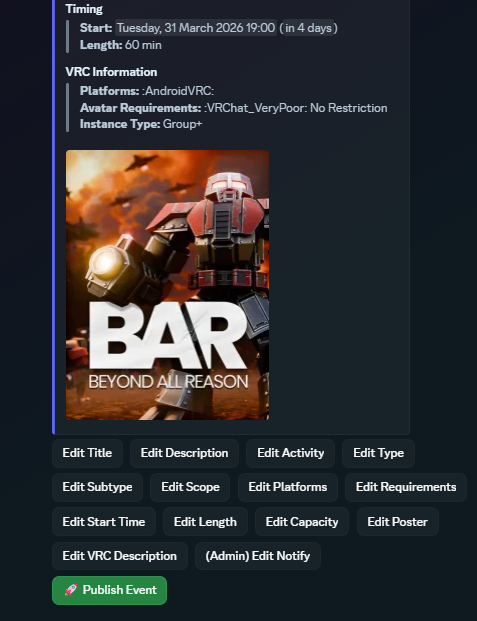
Click one of the edit buttons to modify that particular field
| Button | Description | VRC : Discord |
|---|---|---|
| Edit Title | Edits the Event Title - This updates the Draft title name as well | Both |
| Edit Description | Edit Description - 4,000 character limit | Both |
| Edit Activity | Can be ignored | Both |
| Edit Type | Whether this is VRC or Discord | Both |
| Edit Subtype | Change the subtype between Gaming, Art, Social etc | Both |
| Edit Scope | Select between Group only or Group+ | VRC |
| Edit Platforms | Select between PCVR, Android | VRC |
| Edit Requirements | Select Avatar Requirement (Any, Very Poor or better, Poor or better etc) | VRC |
| Edit Start Time | Change the start time of your event | Both |
| Edit Length | Change how long the event runs for | Both |
| Edit Capacity | Edit how many people can join the event | Both |
| Edit Poster | Change the poster | Both |
| Edit VRC Description | Edit the description that will be sent to VRC for the calendar event | VRC |
| (Admin) Edit Notify | Change if the event should be pushed to the VRC group calendar | VRC |
| Publish Event | PUBLISH! Post your event! Will update various calendars, create live threads, people can start signing up | Both |
Edit a Published Event #
When an event is published, the draft thread will still exist and allow you to make further edits, the changes you make will only update the data in the database and will not show on the event embed itself until you click “Update Published Event”
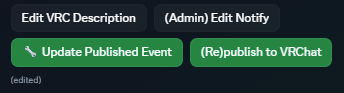
This will trigger a refresh of the event embed, so it will show the new information.
Hyping up events #
Feel free to post and discuss your event with others to build up some hype
Best Practice / Suggestions for hosting #
These are not hard rule that must be followed but we have found the following to help when running events.
Event start #
When your event starts, those that have signed up will get a notification from the bot, some people tend to show up a few minutes late, so you might want to put your start time 10min early and then state your event will start at X time, late joiners can catch up afterwards.
Kicking off your event #
As you’re about to start, give people present a quick reminder of what the event is about, any rules or stipulations they should be aware of and depending how the event is run, how they can ask for assistance etc.
- Ask people to set safety option to none or add you as a friend
To make sure people can see your shaders - such as the message prefab, people will need your avatar enabled. If you intend to drop portals for friends only to limit who can join, make sure people have added you and any co hosts as needed beforehand.
- Topic warnings up front.
Once you are about to start your event, its a good idea to quickly announce any content warnings or sensitive topics - you may well have had these in the description; not everyone will necessarily fully read the event descriptions.
Welcome new joiners #
This is more around group+ where people might be joining your event for the first time, likely joining a friend to see what they’re up to. They’ll likely not be aware that you are hosting an event, so its nice to give them a quick greeting and intro “Hey, joining the event? we’re just talking about X and Y, feel free to join its currently ‘persons’ turn. "
Not a requirement but this can make new people joining feel welcomed, as well as helping establish they have joined a friend in the middle of something, please don’t be disruptive but feel free to join in!
Setting Avatar restrictions #
If you expect to have a lot of people join 20+ we recommend you set the avi restrictions to poor or better to ensure people have a better experience.
You can also use the Wicked Menty Analyzer to see your vrchat performance and what can be modified to improve your performance rating.
There is a lot to be said about the efficacy of the vrchat rating, but it is currently the best way for anyone to quickly see performance inside vrchat without having to analyse each person in an instance and add a tonne of workload to event hosts.. So whilst not perfect, its a good starting reference point.
When to Group or Group+ #
If you are running an event where people should engage with the event, should be aware of the rules, potentially there is some specific information in the event description they should follow - we recommend running the event as a group event.
If its an open event, people can kick back and just vibe then group+
Group+ allows friends of people in the instance to join - they will likely have no idea of any rules, expectations etc
Group means only members of the group can join. As they should at least have joined other events before, as well as be members of the VRC group and Discord - they should hopefully be aware of the community guidelines and rules.
Important Commands: #
Create-event #
Starts Event creation wizard
It’s so important it has its own section
List-my-drafts #
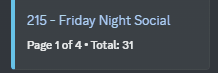
This will give you a list of all of your events in a paginated embed
This lets you move between pages quickly to see all of the drafts you’ve created.

The first number is the “ID” so you can use this with ‘Duplicate-event’ to re-host an event you have hosted before.
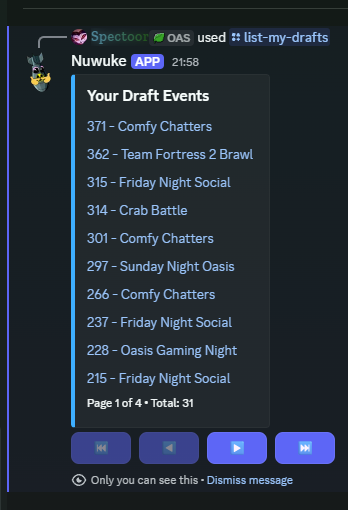
There are 2 optional fields
Host: Can search for events hosted by another user. By default command assumes searching for your own events.
Search: Search for Events that have the text / string in the title. Fuzzy search so any part of the title containing the string will be shown.
I.e if you were a Co-Host and need to host the next event you can use
/list-my-drafts host:@er3016 search:crab
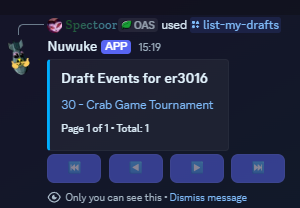
Duplicate-event #
You can quickly duplicate a previous event draft with duplicate-event <id> - replacing the ID with the event ID, shown in the “list-my-drafts” command, on the draft thread name itself and in the draft embed
This includes 2 optional fields
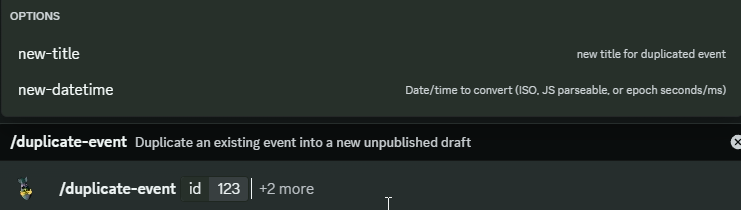
New-title: If changing the name of the event, you can change it when duplicating - There is a discord rate-limit where the bot cannot change the name of a thread twice in a 10min window, so if you duplicate the event and then want to change the name, you will need to wait ~10min otherwise it will fail.
New-datetime: Instead of duplicating, then clicking “Edit Start Time” you can feed in the new datetime for the event immediately.
Keep in mind this uses chrono-node which tries to parse “natural language” i.e “6pm 3rd of march”
TimeStamp #
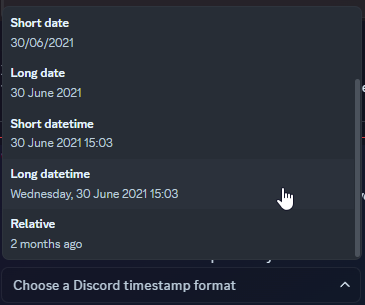
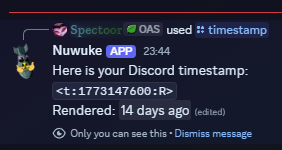
Can generate a quick Discord pre-formatted copy-paste. Type in the date-time you want converted in a human readable format
e.g “March 10th 2pm CET”
You can then pick the style of timestamp you want in a dropdown selection menu the copy-paste version as well as a preview of how this will look

FAQ’s #
How do I add Modular Avatar to my Unity Project? #
https://modular-avatar.nadena.dev/
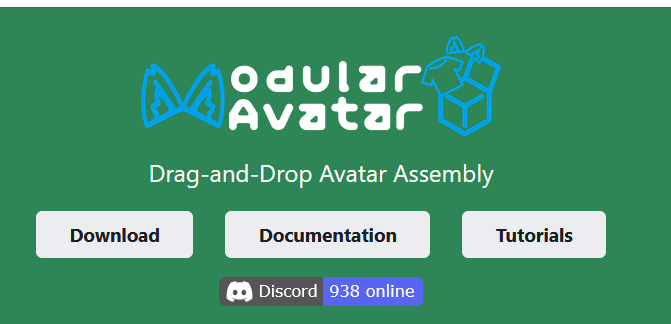
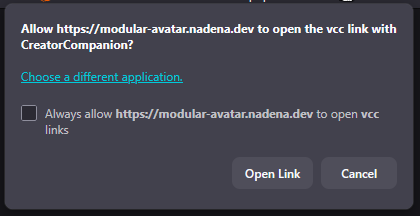
Download Link: “vcc://vpm/addRepo?url=https://vpm.nadena.dev/vpm.json” Click Download and you should be prompted to load the link within VRChat Creator Companion
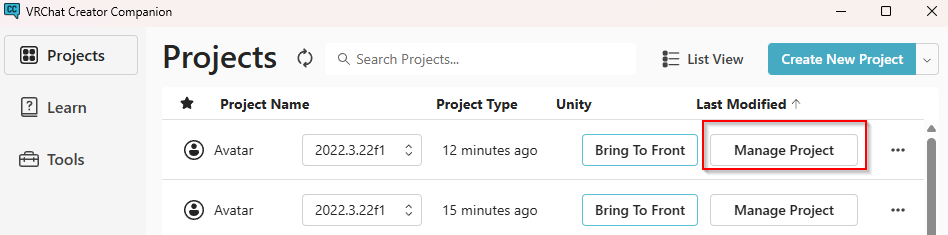
Once added you should be able to see it when you go to manage Project Open Creator Companion - go to projects tab (top left) and then on the far right of the line for your project, click Manage Project
You can then enable repo’s for your project. On the far right you can click the + to add. When you next launch your project, the repo should be added to your project

You can confirm it is now installed by navigating to components and seeing the new option for modular avatar

Can I offer a prize for winning an event? #
With certain caveats, the prize should have a low value <£10 and must be possible to award with no risk of doxing i.e cannot be sent to an email address or via post. It will need to be something you can either send to an admin that can hand it over or directly in-game.
As we are mainly a VRChat community, something like VRC+ one off gift would be fine.
I need to update my event - Change the date, time - How can I update the LIVE PUBLISHED version? #
You can edit the draft for your event and then hit “Update Published Event”. This updates the Database information for the event and refreshes the live event embed
This will update the calendars
it won’t re-post the thread in the publish channel
Something has come up and I need to cancel my event, how do I do that? #
We do not currently have a ‘cancel’ feature for events, follow the below depending on what you’d like to cancel the event down;
Do you just need to push the date / time back? - you can edit the draft and update the published event, post a message in your event thread to give people a heads up about the new time.
If you plan to host the event again in the future but don’t know when - You can duplicate the event first using the /duplicate-event id: xx and then message the Oasis Team to request the event be cleared down.
This will create a draft you can then use again in the future, but allows you to clear down the live published version
Please note, the Discord buttons have limits on how long they listen for, events older than 2 weeks ago the buttons to edit the event will not work - you can still run the /duplicate-event, command with new-datetime and the buttons on the new draft will work.
What are the rules around Cross-posting / Collab events? #
Virtual Oasis is very open when it comes to cross-posting, feel free to post your event elsewhere when hosting in an Oasis Group or Group+ instance, people can join directly to friends on green/blue - so may need to add the host to your friend list.
The Group is open so it’s easy for non-group members to join the VRC / Discord to join events.
If hosting elsewhere - make sure it is clear in the event description where the event is hosted and include any rules / how to steps on how to join the event.
Hosting ‘Parties’ #
Parties in the sense of specific end of month, bank holidays, seasonal festivals etc - Are planned to be handled by the Oasis Team We want to retain control over these kind of large events as a lot of extra planning can go into these - we also coordinate event drops, giveaways or triggering/timing certain changes to coincide on the server.
However social events that have some party like aspect to them i.e a music hangout, or even a meet to chill listening to a new album, showcase your DJ set etc - these are fine to run as social events, raise a ticket if you’d like us to also post the event on https://vrc.tl/
For mini / drinking get togethers, you can use the spontaneous hangouts channel https://discord.com/channels/1413245061382275198/1413942777728864256.
What if someone has blocked me in an event I am hosting? #
For VR Chat
When blocked you will not be able to see or hear the person in the instance, however if you open your menu and select the PIN icon at the bottom. You will see all players in the instance.
If someone has blocked you and you’re hosting this could cause disruptions to your event and as such would be in breach of the rules - so you can warn them, see if they unblock & kick them from the instance.
You may also opt to raise the issue with someone else to discuss why they blocked you - it may have been an error that can be resolved promptly with minimal issue.
For non VRC (Discord etc)
There are fewer controls and / or too many specifics down to the relevant game / event style.
Please call out for support as necessary from a member of the Oasis Team.
You can raise a mod ticket
Feedback #
Hopefully the above is helpful and you have a great time running your event(s) with the tools you need. We’d be grateful for any feedback or comments - both positive and negative that you might want to share. Feel free to nudge us either in-game or on the discord.
We also have a feedback form